Build and deploy Java Spring Boot microservices on Kubernetes
Spring Boot is one of the popular Java microservices framework. Spring Cloud has a rich set of well integrated Java libraries to address runtime concerns as part of the Java application stack, and Kubernetes provides a rich featureset to run polyglot microservices. Together these technologies complement each other and make a great platform for Spring Boot applications.
In this code we demonstrate how a simple Spring Boot application can be deployed on top of Kubernetes. This application, Office Space, mimicks the fictitious app idea from Michael Bolton in the movie Office Space. The app takes advantage of a financial program that computes interest for transactions by diverting fractions of a cent that are usually rounded off into a seperate bank account.
The application uses a Java 8/Spring Boot microservice that computes the interest then takes the fraction of the pennies to a database. Another Spring Boot microservice is the notification service. It sends email when the account balance reach more than $50,000. It is triggered by the Spring Boot webserver that computes the interest. The frontend uses a Node.js app that shows the current account balance accumulated by the Spring Boot app. The backend uses a MySQL database to store the account balance.
Flow
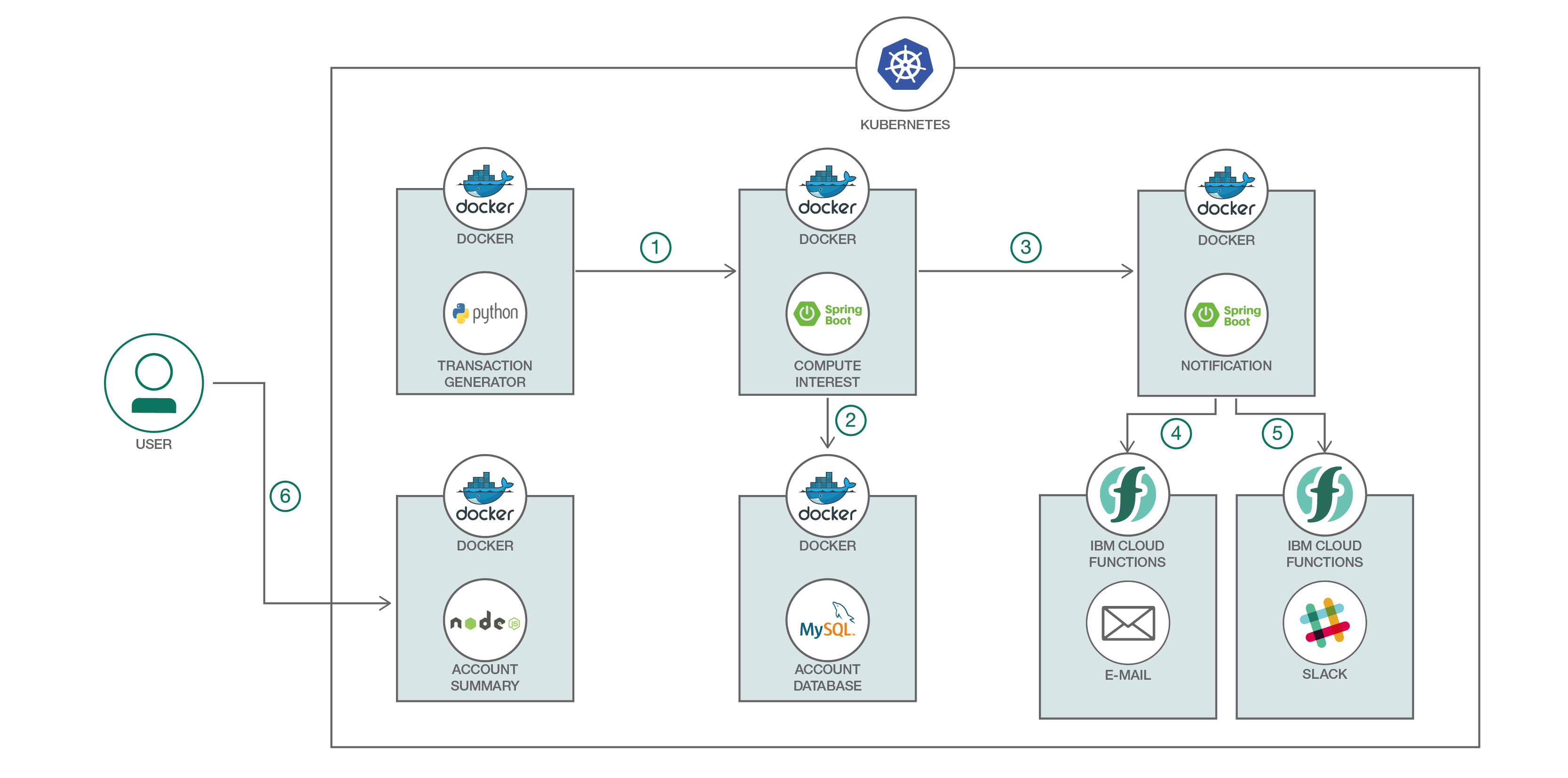
- The Transaction Generator service written in Python simulates transactions and pushes them to the Compute Interest microservice.
- The Compute Interest microservice computes the interest and then moves the fraction of pennies to the MySQL database to be stored.
- The Compute Interest microservice then calls the notification service to notify the user if an amount has been deposited in the user's account.
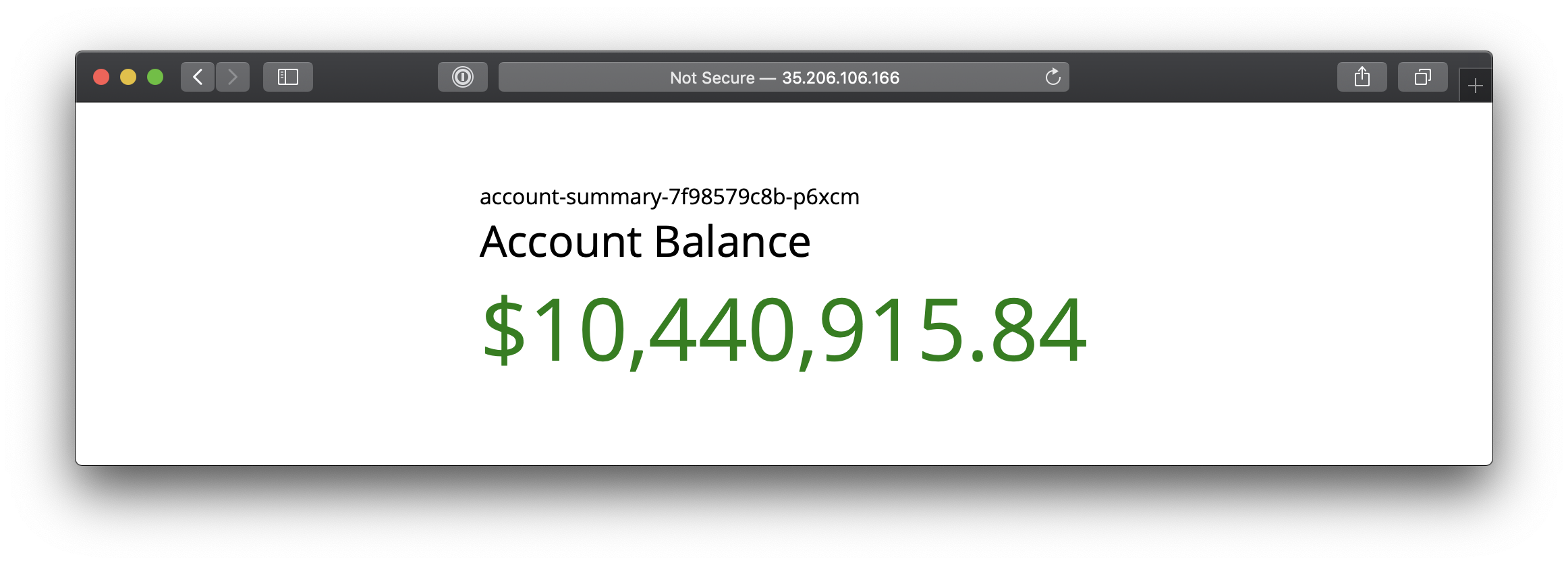
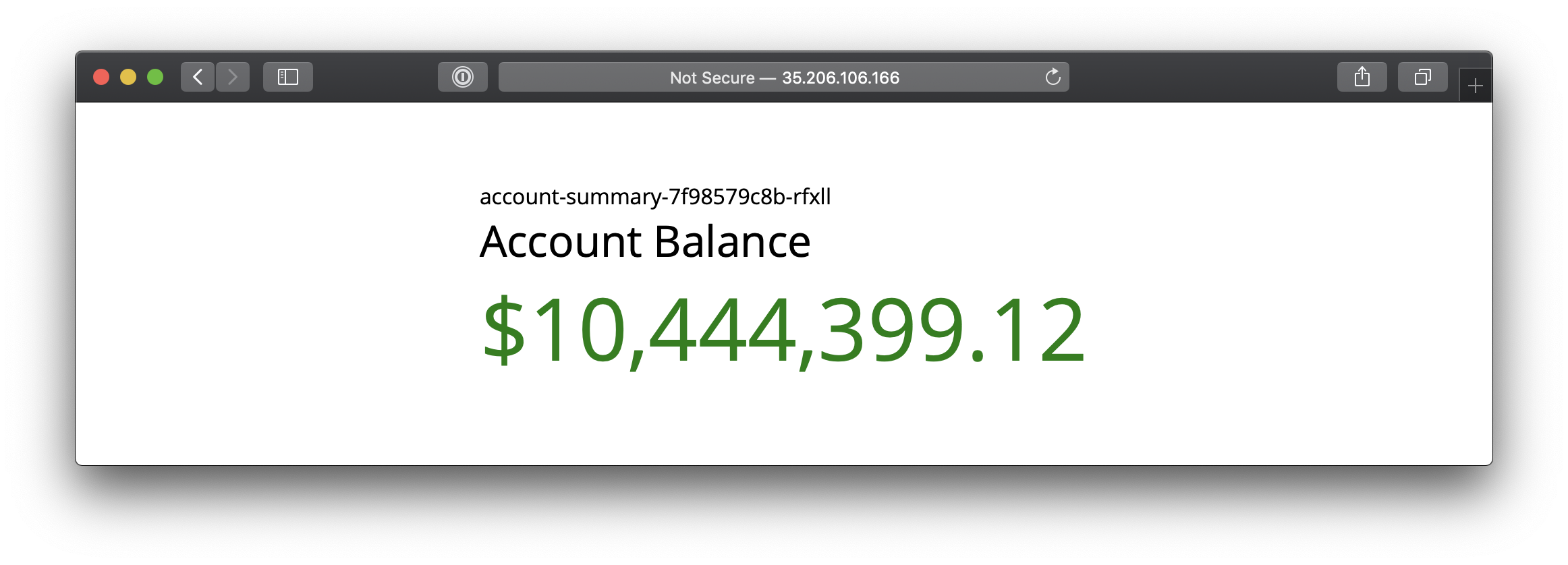
- The user retrieves the account balance by visiting the Node.js web interface.
Prerequisite
- Kubernetes cluster
- Maven
sudo apt update
sudo apt install default-jre default-jdk maven -y
Steps
Clone the repo
git clone https://gitlab.com/we-can-do-now/spring-boot/office-space-k8s.git
cd office-space-k8s/
Create the Database service
kubectl create -f account-database.yaml
service/account-database created
deployment.extensions/account-database created
Default credentials are already encoded in base64 in secrets.yaml.
Encoding in base64 does not encrypt or hide your secrets. Do not put this in your Github.
cat secrets.yaml
---
apiVersion: v1
kind: Secret
metadata:
  name: demo-credentials
type: Opaque
data:
  username: bWljaGFlbGJvbHRvbg==
  password: cGFzc3dvcmQ=
  host: YWNjb3VudC1kYXRhYmFzZQ==
  port: MzMwNg==
kubectl apply -f secrets.yaml
secret/demo-credentials created
Create the Spring Boot Compute-Interest-API Microservice
Compute-Interest-API is a Spring Boot app configured to use a MySQL database. The configuration is located in compute-interest-api/src/main/resources/application.properties in spring.datasource.*
cat containers/compute-interest-api/src/main/resources/application.properties
# ===============================
# = DATA SOURCE
# ===============================

# Set here configurations for the database connection

# Connection url for the database "account-database"
spring.datasource.url = jdbc:mysql://${MYSQL_DB_HOST}:${MYSQL_DB_PORT}/dockercon2017

# Username and password
spring.datasource.username = ${MYSQL_DB_USER}
spring.datasource.password = ${MYSQL_DB_PASSWORD}

# Keep the connection alive if idle for a long time (needed in production)
spring.datasource.testWhileIdle = true
spring.datasource.validationQuery = SELECT 1

spring.datasource.tomcat.max-wait=60000

# ===============================
# = JPA / HIBERNATE
# ===============================

# Use spring.jpa.properties.* for Hibernate native properties (the prefix is
# stripped before adding them to the entity manager).

# Show or not log for each sql query
spring.jpa.show-sql = true

# Hibernate ddl auto (create, create-drop, update): with "update" the database
# schema will be automatically updated accordingly to java entities found in
# the project
spring.jpa.hibernate.ddl-auto = update

# Naming strategy
spring.jpa.hibernate.naming-strategy = org.hibernate.cfg.ImprovedNamingStrategy

# Allows Hibernate to generate SQL optimized for a particular DBMS
spring.jpa.properties.hibernate.dialect = org.hibernate.dialect.MySQL5Dialect

# Secret to share between client and server when enabling remote live restarting or debugging. DO NOT USE IN PRODUCTION
spring.devtools.remote.secret=thisismysecret
The application.properties is configured to use MYSQL_DB_* environment variables. These are defined in the compute-interest-api.yaml file. It is already configured to get the values from the Kubernetes Secrets that was created earlier.
cat compute-interest-api.yaml
---
apiVersion: v1
kind: Service
metadata:
  name: compute-interest-api
  labels:
    app: office-space
spec:
  ports:
    - port: 8080
      protocol: TCP
      targetPort: 8080
  selector:
    app: office-space
    tier: compute
---
apiVersion: extensions/v1beta1
kind: Deployment
metadata:
  name: compute-interest-api
  labels:
    app: office-space
spec:
  strategy:
    type: Recreate
  template:
    metadata:
      labels:
        app: office-space
        tier: compute
    spec:
      containers:
        - image: anthonyamanse/compute-interest-api:v1
          imagePullPolicy: Always
          name: compute-interest-api
          env:
            - name: MYSQL_DB_USER
              valueFrom:
                secretKeyRef:
                  name: demo-credentials
                  key: username
            - name: MYSQL_DB_PASSWORD
              valueFrom:
                secretKeyRef:
                  name: demo-credentials
                  key: password
            - name: MYSQL_DB_HOST
              valueFrom:
                secretKeyRef:
                  name: demo-credentials
                  key: host
            - name: MYSQL_DB_PORT
              valueFrom:
                secretKeyRef:
                  name: demo-credentials
                  key: port
          ports:
            - containerPort: 8080
Build the project using Maven
cd containers/compute-interest-api
mvn package
After Maven has successfully built the Java project, you will need to build the Docker image using the provided Dockerfile.
cat Dockerfile
FROM maven:3.3.9-jdk-8-alpine
COPY . /app
WORKDIR /app
RUN apk update && apk add mysql mysql-client
ENTRYPOINT ["/app/custom-entrypoint.sh"]
CMD java -jar target/*.jar
docker build -t adithya321/compute-interest-api .
docker push adithya321/compute-interest-api
Once you have successfully pushed your image, modify compute-interest-api.yaml to use this image
cd ~/office-space-k8s/
vim compute-interest-api.yaml
...
spec:
    containers:
        - image: adithya321/compute-interest-api:latest
...
Deploy the Microservices
- Deploy the Spring Boot Microservice
kubectl apply -f compute-interest-api.yaml
service/compute-interest-api created
deployment.extensions/compute-interest-api created
- Deploy the Frontend service
The UI is a Node.js app serving static files (HTML, CSS, JavaScript) that shows the total account balance.
kubectl apply -f account-summary.yaml
service/account-summary created
deployment.extensions/account-summary created
- Deploy the Transaction Generator service
The transaction generator is a Python app that generates random transactions with accumulated interest.
kubectl apply -f transaction-generator.yaml
service/transaction-generator created
deployment.extensions/transaction-generator created
Access Your Application
You can access your app publicly through your Cluster IP and the NodePort.
To find your IP:
kubectl get nodes -o wide
NAME                                                STATUS   ROLES    AGE   VERSION         INTERNAL-IP   EXTERNAL-IP      OS-IMAGE                             KERNEL-VERSION   CONTAINER-RUNTIME
gke-standard-cluster-1-default-pool-a6b2de38-4nhh   Ready    <none>   24m   v1.11.8-gke.6   10.128.0.2    35.206.106.166   Container-Optimized OS from Google   4.14.91+         docker://17.3.2
gke-standard-cluster-1-default-pool-a6b2de38-4tv3   Ready    <none>   24m   v1.11.8-gke.6   10.128.0.4    35.209.61.153    Container-Optimized OS from Google   4.14.91+         docker://17.3.2
gke-standard-cluster-1-default-pool-a6b2de38-d5sd   Ready    <none>   24m   v1.11.8-gke.6   10.128.0.3    35.209.252.98    Container-Optimized OS from Google   4.14.91+         docker://17.3.2
To find the NodePort of the account-summary service:
kubectl get svc account-summary
NAME              TYPE       CLUSTER-IP     EXTERNAL-IP   PORT(S)        AGE
account-summary   NodePort   10.11.255.41   <none>        80:30080/TCP   2m
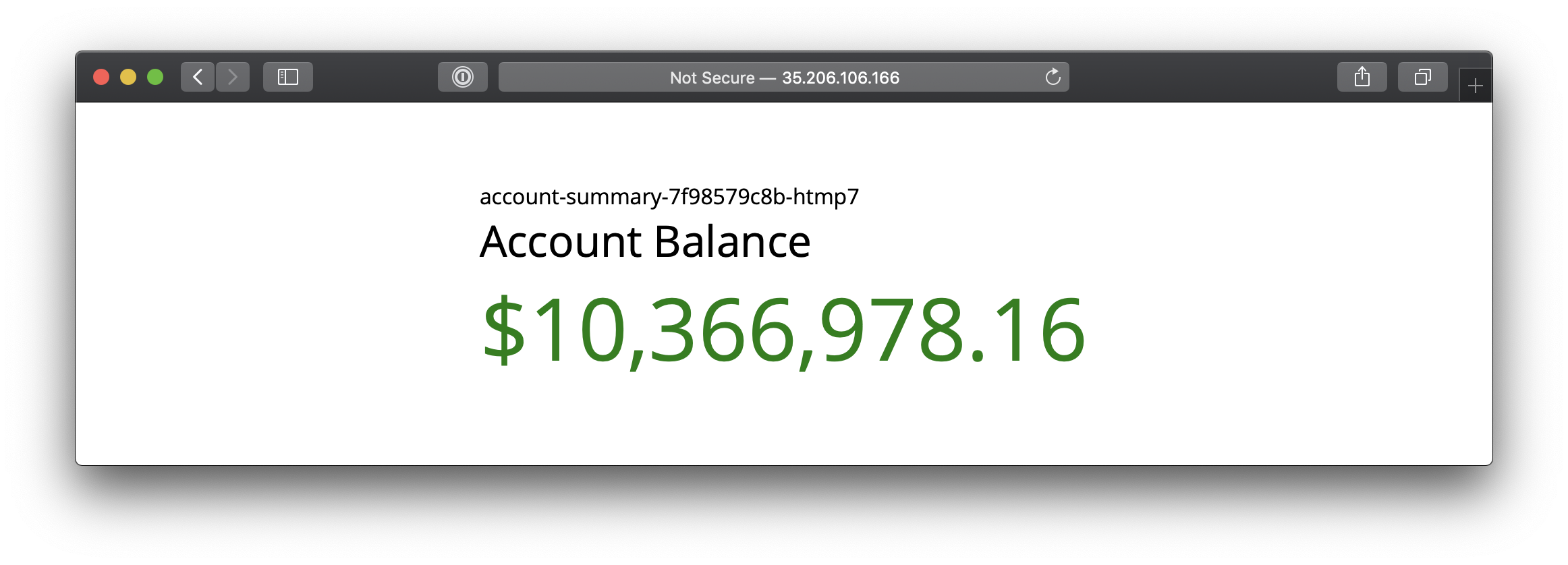
On your browser, go to http://your-cluster-IP:30080
Scale the frontend deployment
kubectl scale deployment/account-summary --replicas=5
deployment.extensions/account-summary scaled
Refresh the page multiple times to see a different pod's hostname